Your scan results, in Slack
Slack Integration
Security findings, where your team already is
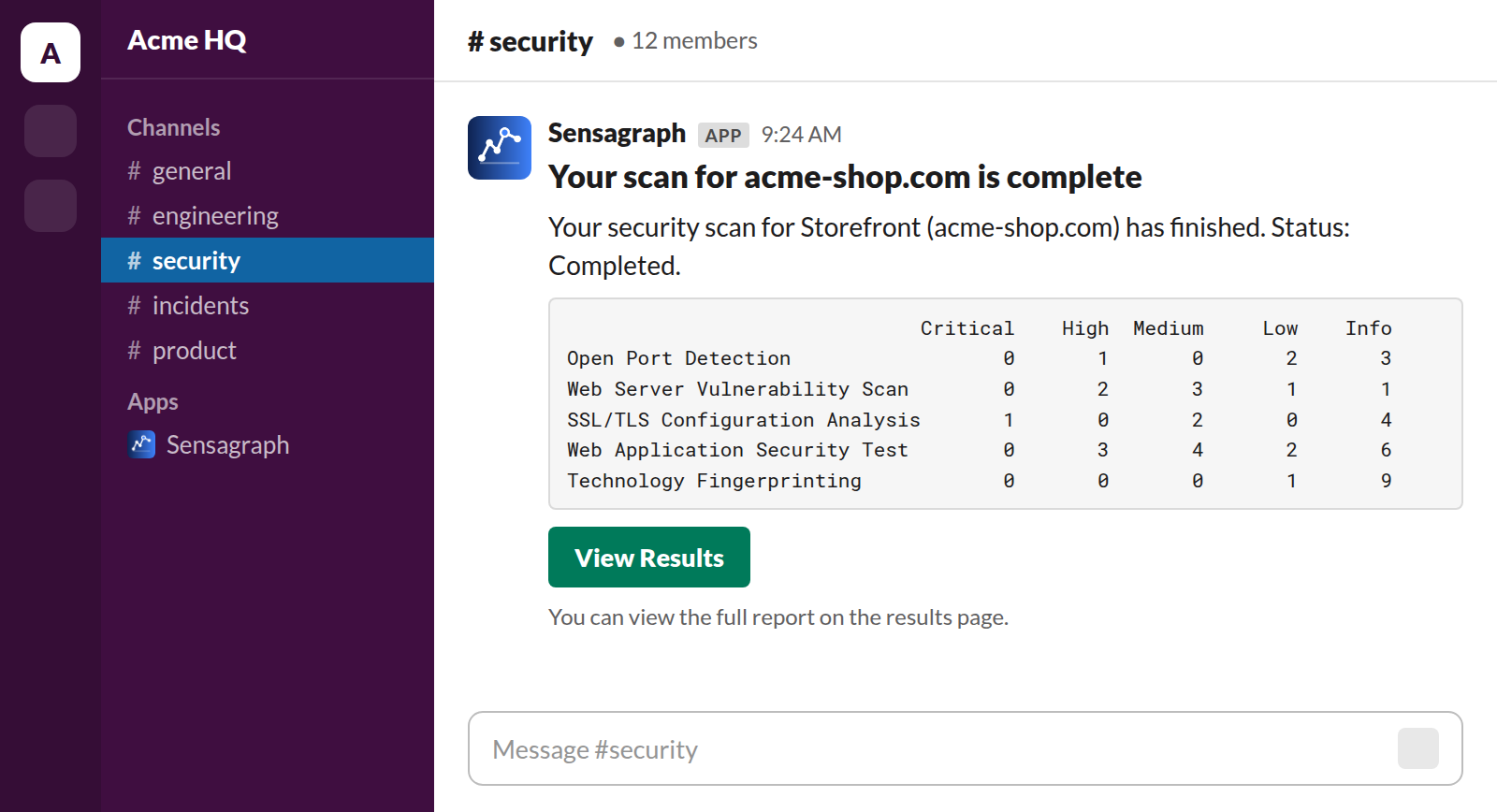
Sensagraph scans your domains and web applications for security weaknesses. Connect Slack and every finished scan is announced in the channel you choose the finding counts for every tool, and a link straight to the full report.
A Sensagraph account is required. You will be asked to sign in, then Slack will ask which channel the results should land in.
In The Channel
What lands in your channel
One message per finished scan. No noise, no daily digest, nothing to configure it is the same summary your team already receives by email.
Which target finished
The scanned address, the label your team gave it, and whether the run completed in full or only in part.
Findings by severity
One row per security tool that took part, with the Critical, High, Medium, Low and Info counts it recorded.
A way straight in
A button that opens the full findings for that run in Sensagraph, so nobody has to go hunting for it.
A record that stays
Scheduled scans build a week-by-week log in the channel that the whole team can read back through.
Getting Started
Connected in three steps
A team admin sets this up once. It takes about a minute, and there is nothing to copy, paste or configure afterwards.
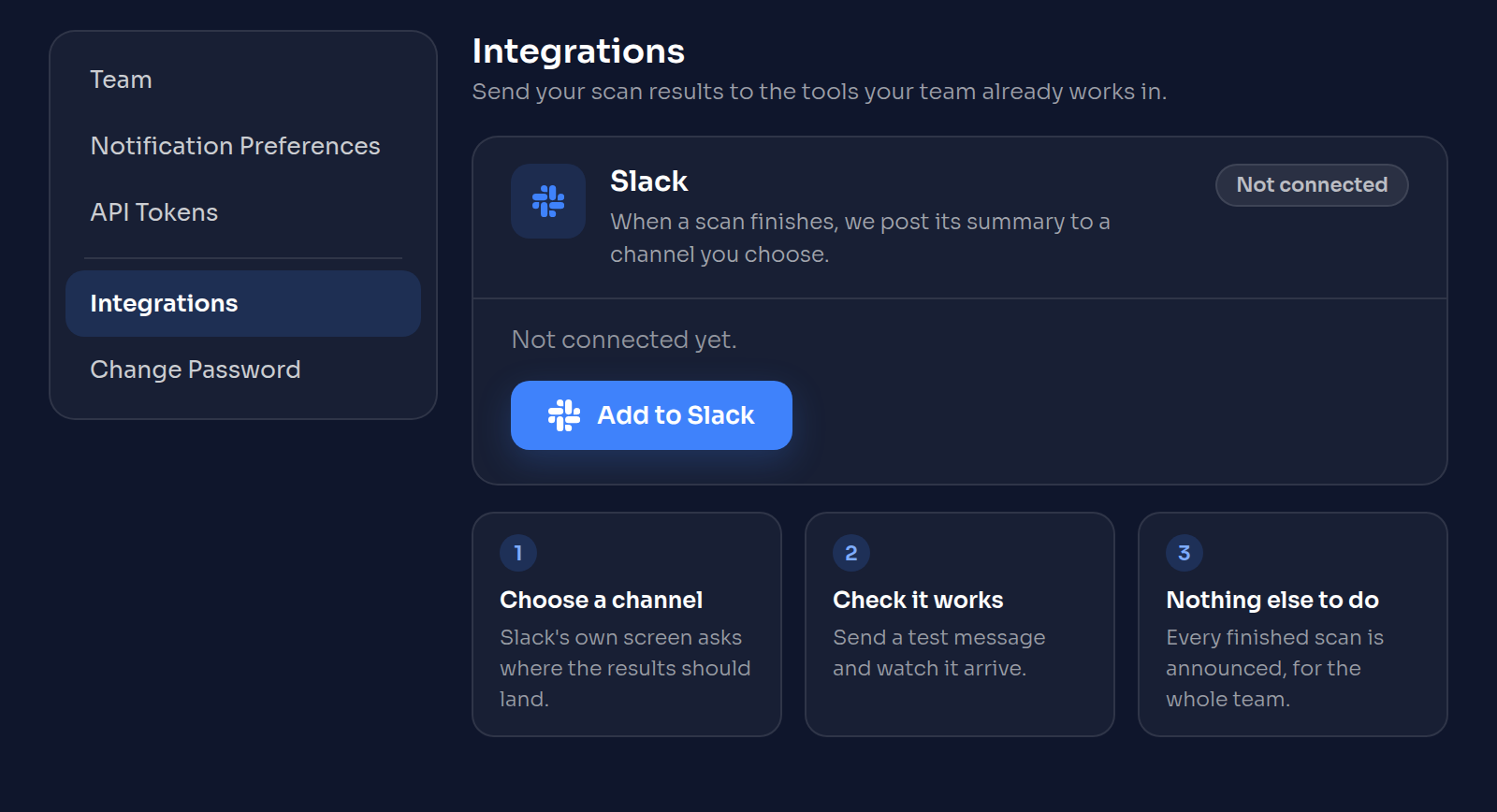
Open Settings → Integrations
Sign in to Sensagraph and open the Integrations page from your account settings. The Slack panel is the first thing on it.
Choose Add to Slack
Slack takes over from here. Its own screen shows you exactly what Sensagraph is asking for, and asks you to pick the channel the results should go to.
You are done
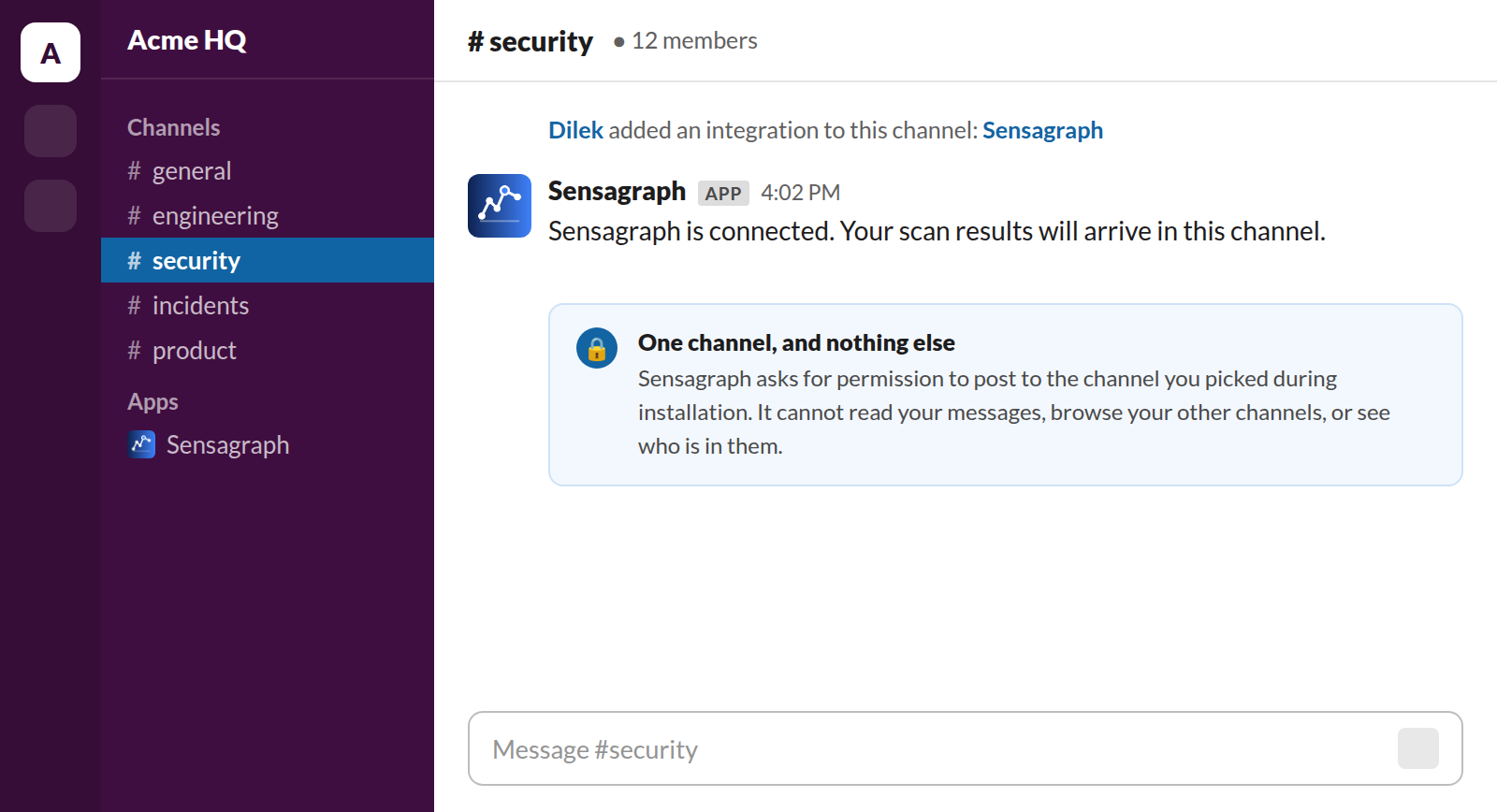
Sensagraph brings you back with the workspace and channel confirmed on the page. The next scan that finishes is announced there.
After Installing
What happens next
You do not have to wait for a scan to find out whether it worked.
-
A confirmation you can see
The Integrations page names the workspace and the channel you connected, who connected it, and when the last message was sent.
-
A test message on demand
Send test message posts to the channel straight away, so you know the connection works before the first scan finishes.
-
It belongs to the team
The connection is the team's, not the person's who made it. Every member can see where the results go; the admin decides whether they keep going there.
-
Removed just as easily
Disconnect on the same page stops the messages and hands the token back to Slack. You can connect again at any time.
Before You Start
Requirements and support
A Sensagraph account
The integration announces your own scans, so it needs an account with at least one verified domain. Signing up is free.
See pricingTeam admin rights
Connecting and disconnecting Slack is an admin action. Every other member of the team can see the connection but not change it.
Help when you need it
Write to us and a person answers, usually within one business day.
Contact supportPut your scan results where your team already is
Connect Slack once and stop checking a dashboard to find out whether the scan ran.